Contact Us

If you still have questions or prefer to get help directly from an agent, please submit a request.
We’ll get back to you as soon as possible.

Please fill out the contact form below and we will reply as soon as possible.

  • Contact Us

General

Users may need to clear their cache within their internet browser after a Gallopade Online release to be able to gain access to the newest features.

Written by Priya Pawar Lakshmi Narayanan

Updated at June 30th, 2026

Contact Us

If you still have questions or prefer to get help directly from an agent, please submit a request.
We’ll get back to you as soon as possible.

Please fill out the contact form below and we will reply as soon as possible.

  • Quick Start Guide
    Log In / Sign In Adding Course(s) Syncing Classes for Google Classroom Basic Dashboard Navigation Creating Assignments Grading
  • Teachers and Administrators
    Administrator Support Teacher Support
  • Student Support
    My Assignments My Courses Overview Student Dashboard
  • LMS Integrations
    Canvas and GO! Google Classroom and GO! Schoology and GO!
+ More
  • Home
  • Teachers and Administrators
  • Administrator Support
  • General

How do I clear my cache in Google Chrome?

Users may need to clear their cache within their internet browser after a Gallopade Online release to be able to gain access to the newest features.

Updated June 30th, 2026

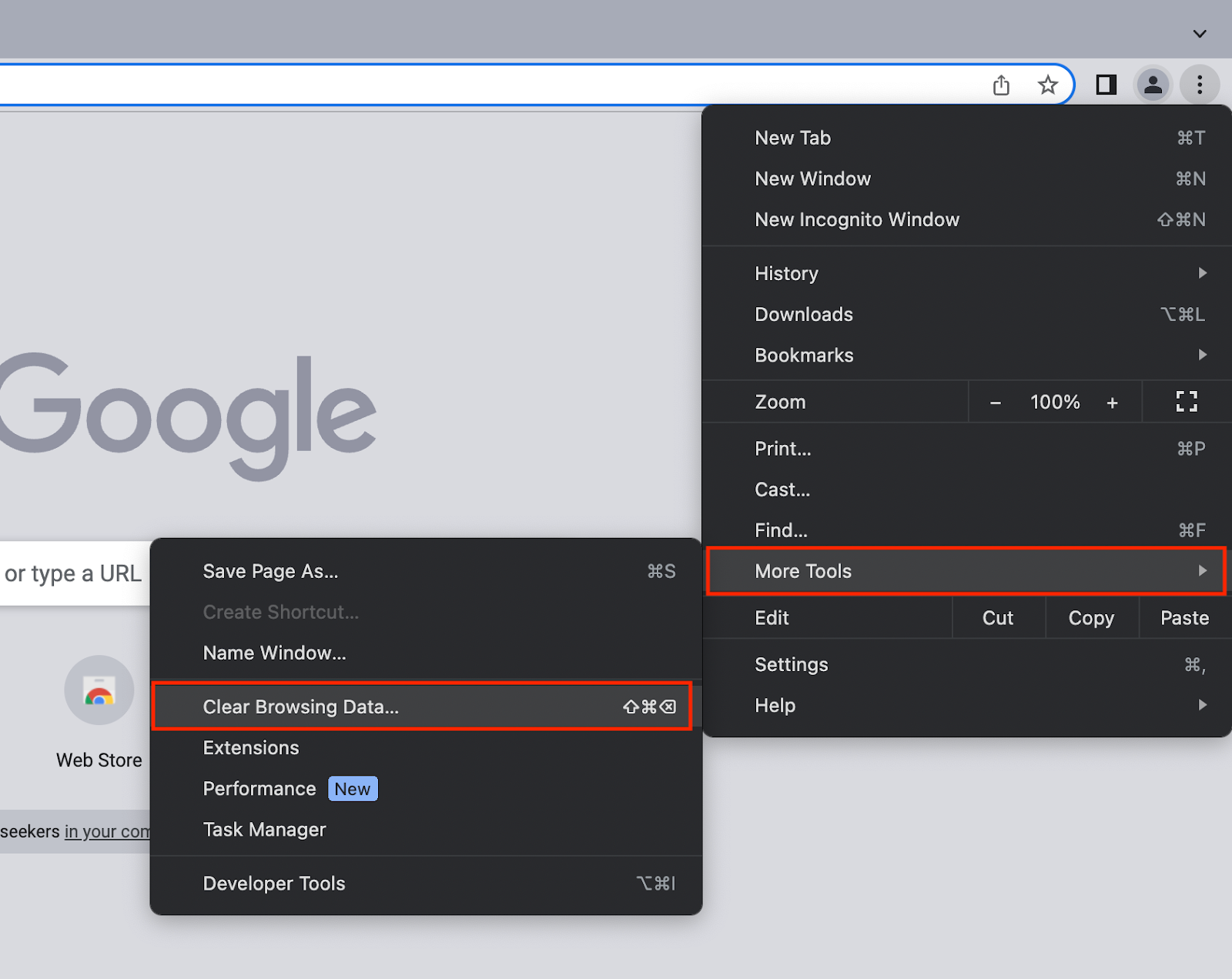
While using Google Chrome, select the three dots on the top right corner of your browser window.



Then from the menu select More Tools and Clear Browsing Data.


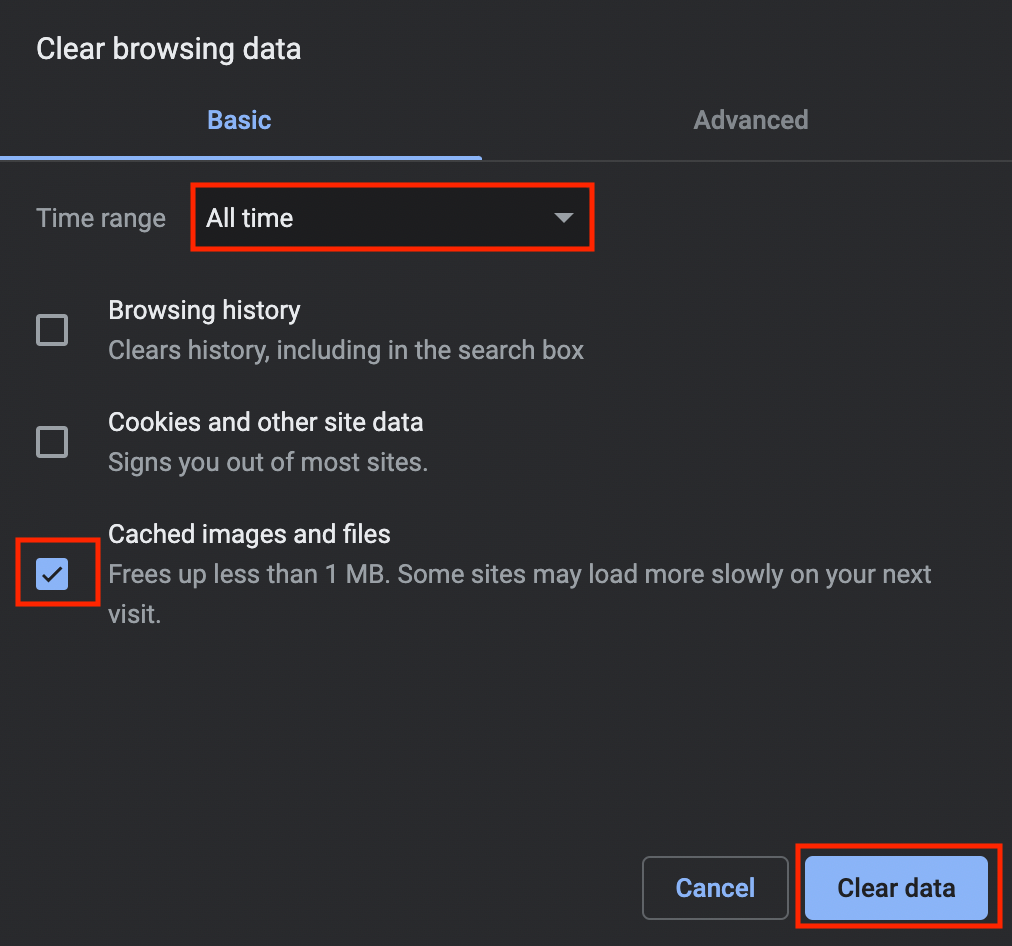
In the pop- up menu, select All Time from the drop down menu, select Cached images and files, then press Clear data. 
 

clearance cache

Was this article helpful?

Yes
No
Give feedback about this article
Contact Us
gallopadecurriculum.com

Knowledge Base Software powered by Helpjuice

Expand